Ask your firm's rules from Claude with an MCP connection
Your team can ask Claude a question and get your firm's rule back with the reason behind it. Each answer shows which rule it came from.
Prerequisites
- A Claude plan that supports custom connectors. On Free, Pro and Max plans, turn off "Help improve Claude" in your privacy settings so your chats aren't used for training. Team and Enterprise plans don't use your data for training.
- A captured artifact or FAQ in your B2B Architect portal with at least one decision rule or FAQ entry.
1. Before you start
Someone at your firm turns on AI tool access in Firm AI tool settings and decides who can connect. If your firm uses Claude Team or Enterprise, an admin may need to allow custom connectors first.
2. Connect Claude
In Claude, open Settings and then Connectors.
Add a custom connector with this address:
https://clients.b2barchitect.com/api/mcp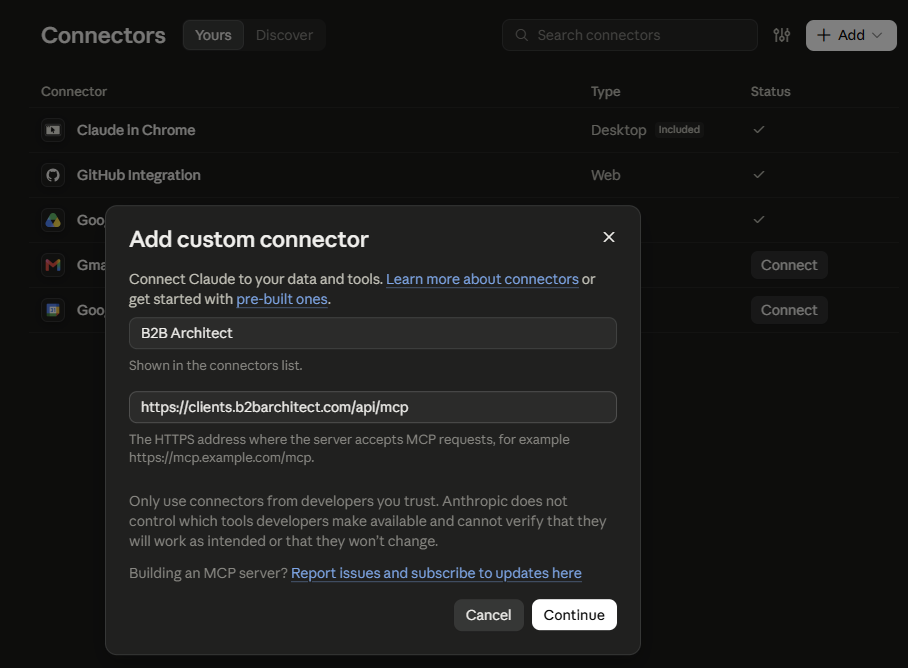
Sign in with your B2B Architect account and approve access.
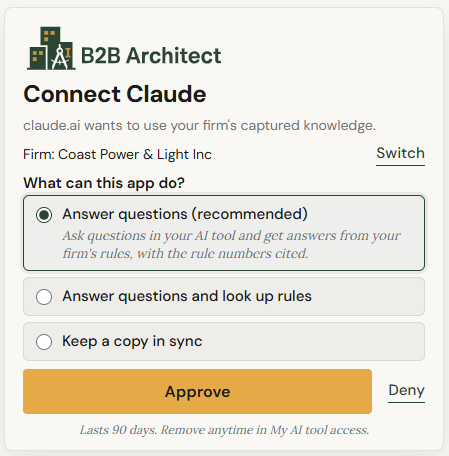
On the access screen, choose Answer questions. Answer questions and look up rules is for advanced use when you want to list rules. Keep a copy in sync supports offline use.
Set the Always Allow permission so Claude doesn't ask for permission each time.
You'll now see the B2B Architect connector in Claude and you can turn it on or off at any time.
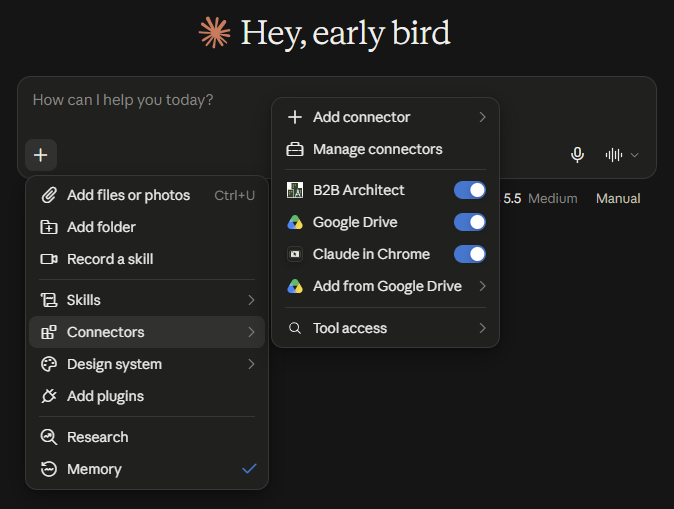
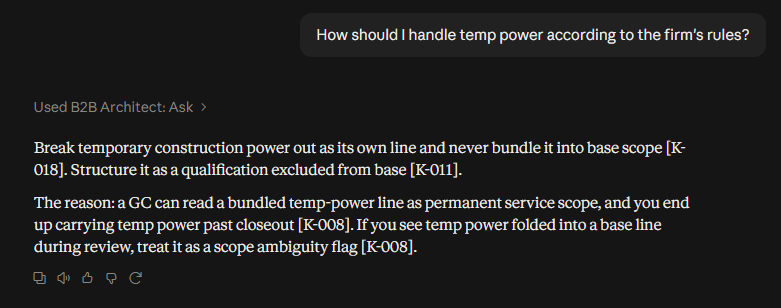
3. Ask a question
Mention the connector in your question.
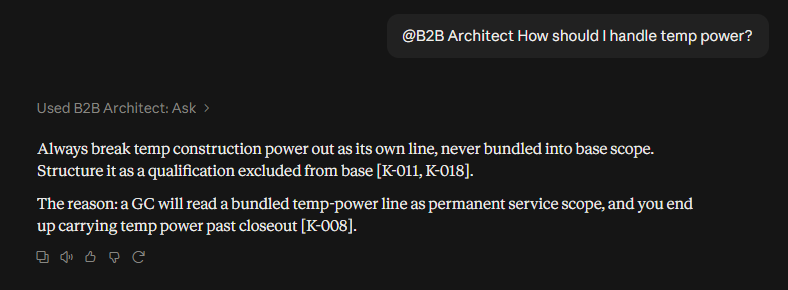
You can also say "our firm's rules" so Claude knows to use it.
4. Stay in control
Each person signs in with their own account.
Role-based access means each person only sees the rules and FAQs their role allows.
You can turn access off for the whole firm or for one person at any time.
5. Not using B2B Architect yet?
Use B2B Architect to capture your team's rules, keep them current and make them available in the AI tools you already use.